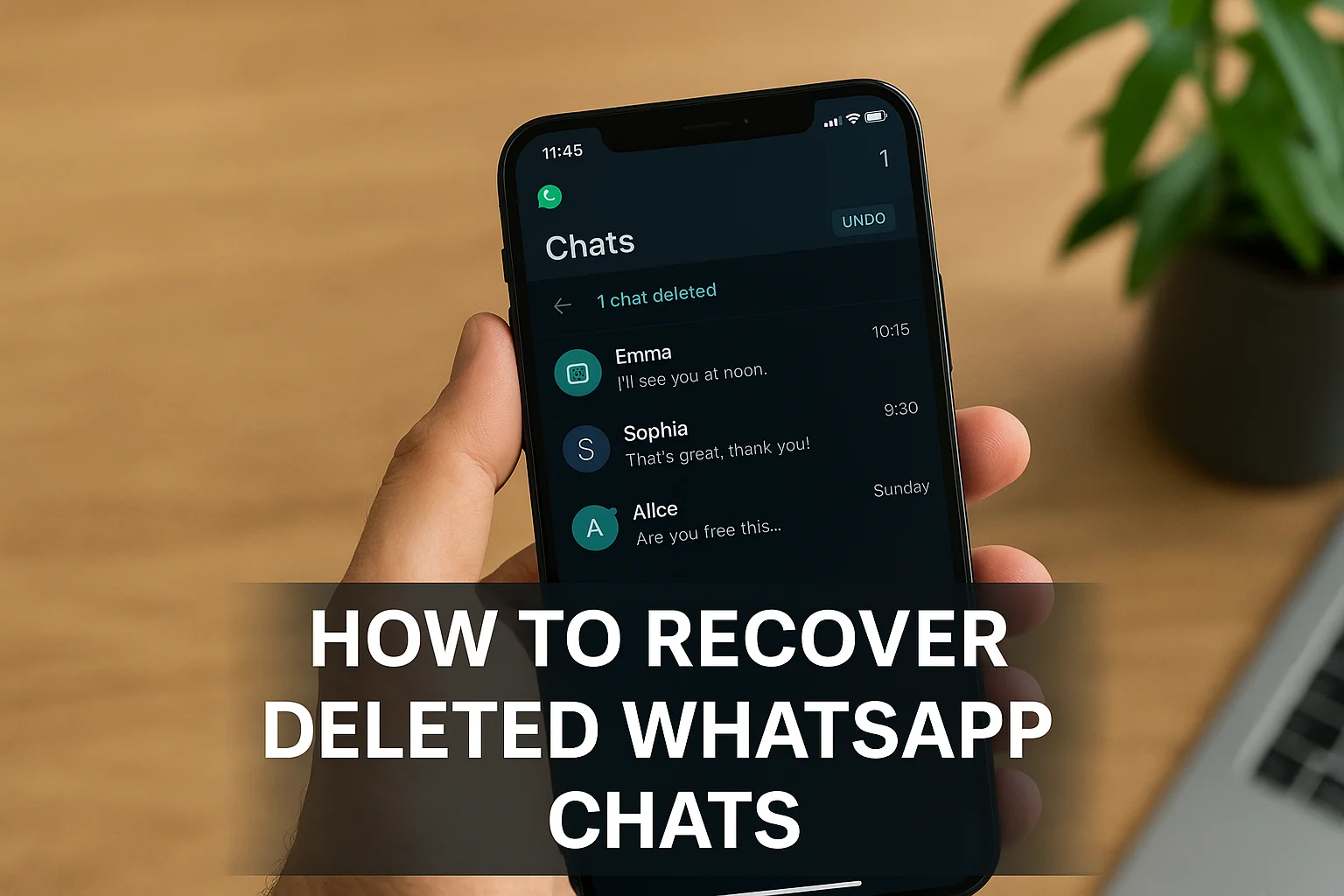
Imagine you are scrolling through WhatsApp and delete a chat thinking, “Oh, I will never need this again,” then a day later realization settles in, and you go, “Oops—wait, I actually needed that!” That is an unfortunate scenario, but the good news is you can prevent that from happening since there are ways to restore deleted WhatsApp messages, both on Android and iPhone. It only depends on one factor, that is, whether you had backups set up (cloud or local) and how quickly you act.
In this blog, we will walk you through how to restore deleted WhatsApp chats on Android and iPhone, what to do if you have no backup, and some tips to prevent future loss of data.
Reasons for Deleted Chats
Here are some of the reasons why your chats might’ve disappeared.
- You accidentally tapped “Delete chat” or cleared a conversation.
- You might’ve uninstalled or reinstalled WhatsApp and didn’t restore a backup.
- Did you switch phones recently? Maybe you didn’t transfer the chats properly while switching phones.
- Your backup might be turned off or too old, so newer messages were lost.
Remember, WhatsApp doesn’t store your full chat history forever unless you have properly backed up, so messages after your last backup usually can’t be retrieved.
Also Check: Is Arattai the Indian Alternative to WhatsApp You’ve Been Waiting For?
How to restore deleted WhatsApp chats on Android
If you are an Android user and you were fortunate enough to have your backup turned on (Google Drive) or local backups, here is what to do:
Method 1: Google Drive Backup
- Start by opening WhatsApp, then head over to Settings > Chats > Chat Backup. Check the last backup date.
- Uninstall & then Reinstall WhatsApp.
- Once you are done logging in, tap on the Restore prompt to back up from Google Drive.
- Wait for the restore to complete, and you should see your old chats. However, anything after that backup’s timestamp is likely gone.
Method 2: Local Backup (Only for Android)
- Open File Manager on your device and then go to the /WhatsApp/Databases/ folder on your phone storage.
- You should see files like msgstore-YYYY-MM-DD.1.db.crypt12 (older backups) and msgstore.db.crypt12 (most recent).
- Then rename the older backup that you want to restore from, for example, rename msgstore-2025-10-01.1.db.crypt12 to msgstore.db.crypt12.
- Reinstall WhatsApp, verify your number, and now you can restore your chats.
Note: Local backups are usually stored for 7 days unless you manually choose to keep them. You also need to use the same phone number and Google account for Google Drive restoration.
How to restore deleted WhatsApp chats on iPhone
Unfortunately, iPhone has fewer “local backup” options as compared to an Android, but hey, you still have a few solid methods if you enabled backup. Here are some:
Method 1: iCloud Backup
- On your iPhone, head to WhatsApp settings, then Chats > Chat Backup, and check when the last backup was done.
- Delete and then reinstall WhatsApp from the App Store.
- Once you open WhatsApp, verify your phone number, then tap on the prompt to “Restore Chat History” from iCloud.
- Wait for the restoration to be completed, and voila! All messages up to the backup time will appear.
- Any messages deleted after that last backup cannot be recovered, unfortunately, so they are gone for good unless you used third-party recovery tools.
Method 2: No Backup? Third-party tools.
There are some solid third-party tools that you can use to recover deleted WhatsApp chats without backup, but they come with caveats like cost, device risk, and data privacy issues. So if you didn’t back up, the chances of recovery drop significantly.
Tips to Avoid Losing WhatsApp Chats Ever Again
- To avoid loss of data, make sure to turn on automatic backup. To do that, go to Settings > Chats > Chat backup > Google Drive/iCloud. Then change the frequency to daily or weekly according to your preference.
- Don’t switch your phone before you make a fresh backup.
- After backup, ensure your latest chats are covered by checking the date and time.
- For Android, you should occasionally go to WhatsApp/Databases and copy msgstore.db.crypt12 to another folder just in case.
- If you are switching from Android to an iPhone or vice versa, use official chat transfer tools because backup alone may not be enough.
To Summarize Everything
| Situation | What you have | What you can do |
| If you have a recent backup (Google Drive or iCloud) | Cloud or local backup valid | Uninstall > reinstall WhatsApp > restore backup |
| If you have local Android backup but no cloud backup | Local backup files exist | Rename and reinstall method (Android only) |
| If you have no backup at all | Neither cloud nor local | Very limited chances: third-party tools are option but not guaranteed |
Things to Remember
- When you restore a backup, it will replace the current chats with those in the backup. So, any newer messages after backing up are lost.
- On Android, you will lose the ability to use older files once they are overwritten by the latest local backup file.
- While on iPhone, if you don’t have iCloud backup turned on, it will be harder to recover chats.
- Be very careful with third-party “free recovery tools” because some may contain malware. Therefore, always check reviews and trustworthiness.
Conclusion
It is totally human to accidentally delete a chat. This is why we have backups today (or local files if you are an Android user). With backups, you can easily recover deleted WhatsApp chats, so make sure to turn them on. Check your backup settings now afterall backing up regularly is the real lifesaver. Because the next time when you delete a chat and wonder, “Where did it go?!” you will know you have got a safety net in place.
Happy chatting and backing up!